
Google Search Console for Beginners: The Three Reports Worth Checking

You publish your first five articles, connect the property, and then check it every morning before work. The clicks line sits at zero. The impressions line barely moves. Somewhere around day nine you start reading the grey bars in the indexing report as proof that Google looked at your site and quietly rejected it.
Nothing about that reaction is unreasonable. Google Search Console for beginners is a rough first experience, because the tool was never designed with beginners in mind.
It was built for technical teams managing thousands of URLs, and it hands a five-post site the same warning labels, the same red graphs, and the same cryptic status codes it hands a national news publisher.
Your site is almost certainly fine. Most of what is in there solves problems you do not have yet. This walkthrough covers the three reports that actually tell you something in your first year, what the alarming status messages mean in plain English, why impressions matter more than clicks right now, and how to get the entire check done in about ten minutes a week.
TL;DR: Google Search Console for Beginners
Why Most Search Console Data Is Noise for New Websites
Search Console is one product doing two very different jobs. For a site with fifty thousand URLs and a development team, it is a monitoring system: regex query filters, API pipelines, Core Web Vitals field data, crawl stats broken out by response type. For a five-post affiliate site, most of that is a set of alarms wired to a building still under construction.
The daily-check habit makes it worse, and the reason is mechanical. The standard Performance views run a day or two behind real time, so what you are reading on Tuesday morning is a partial picture of Saturday. There is a “24 hours” view in the date filter that updates within a few hours, but on a young site it mostly delivers a flat line faster.
So the first thing to fix is not a setting. It is the expectation. New domains sit in a long, quiet phase where almost nothing visible happens, which is exactly what understanding the realistic affiliate marketing timeline prepares you for.
Search Console does not shorten that phase. It just gives you a window onto it, and staring through the window every morning does not make the crops grow faster.
Here is the boundary I would hold for your entire first year: Performance, Page indexing, and URL Inspection. Three things. Nothing else in that sidebar changes a decision you can act on right now.
There is a real cost to that restriction, and I would rather name it than pretend it away. If you ignore Core Web Vitals for a year, you will not catch a genuinely slow host until later than you should.
That is a trade I would still make, because a slow host costs you a little ranking headroom while dashboard paralysis costs you the published posts that create the ranking in the first place.
Report 1: Reading Early Search Impressions in the Performance Report
Open the left sidebar, find Performance, and click Search results. This is the report that tells you whether Google is showing your pages to anyone at all.
Across the top you get four metric cards: Total clicks, Total impressions, Average CTR (the percentage of impressions that turned into clicks), and Average position.
Only clicks and impressions are switched on by default, and the cards are toggles. Click a card and that metric appears on the graph below. Turn on all four for a minute and then turn off clicks, because for the next few months clicks are the least useful number on the screen.
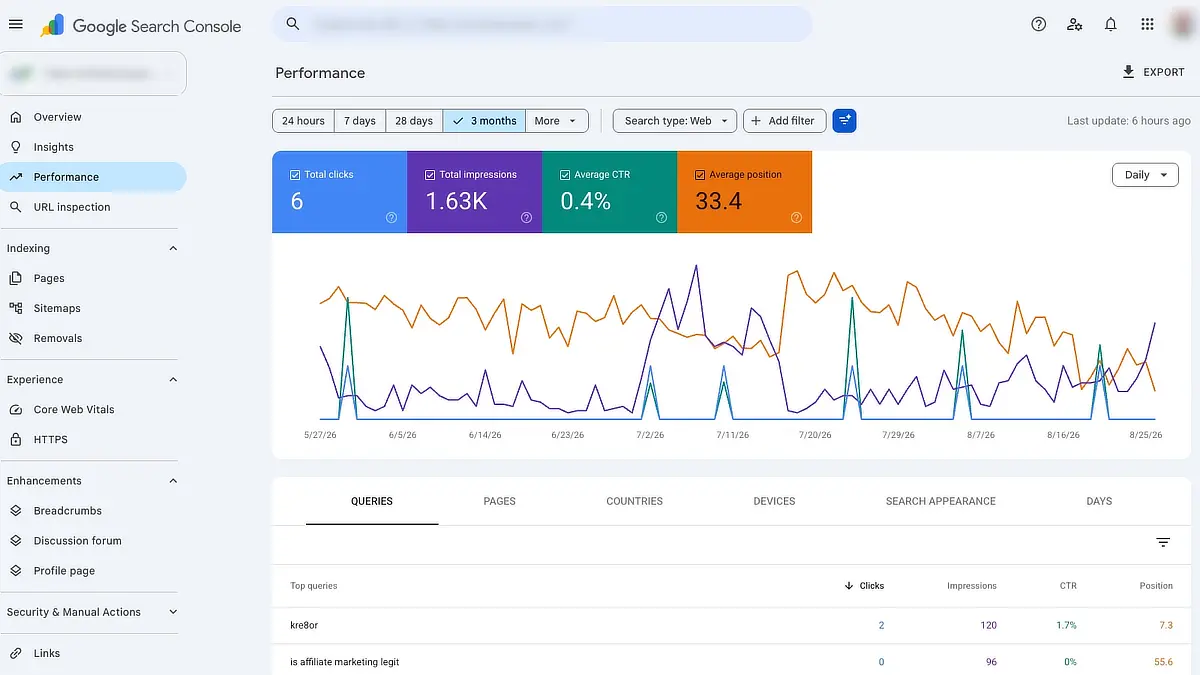
Impressions are the metric that matters early, and the reason is worth understanding rather than memorizing. Google cannot know how people respond to a page it has never shown anyone.
To collect that signal, it has to place your URL in real results for real queries, and on a new domain with no track record it places you where the risk is lowest, which is usually deep in the results where almost nobody scrolls. An impression is Google saying: this page looked relevant enough to test.
That is why an impressions line that climbs while clicks stay at zero is not a contradiction. It is the sequence working correctly. A page that gets no impressions at all is the one to worry about, because it means Google has not yet decided your content is a candidate for anything.
The more useful half of this report sits below the graph. Click the Queries tab and sort by impressions. You are looking at the actual phrases Google is matching your site against, and on a young site the list is frequently a surprise. You will find queries you never targeted, phrased in ways you would not have written, which is free direction for your next three posts.
Where beginners lose real work is here: they check a post two weeks after publishing, see zero clicks, decide it failed, and either rewrite it or stop writing about that topic. The post had not been given a chance to be evaluated yet. Judging a post on clicks in month two is like judging a job interview by whether the offer arrived that afternoon.
Report 2: Decoding Page Indexing Statuses Without Panicking
In the left sidebar, under Indexing, click Pages. This is the Page indexing report, and it is the single most panic-inducing screen in the product for a new site owner.
The top of the report splits every URL Google knows about into two counts: indexed in green, not indexed in grey. Your first instinct will be to want that grey number at zero. It never will be, and it should not be.
Every WordPress site generates URLs that were never meant to be indexed: paginated archives, author pages, feeds, tag archives you deliberately excluded, old redirects. Google’s own guidance is blunt about this. Pages excluded for the right reasons are a healthy result, not a problem to solve.
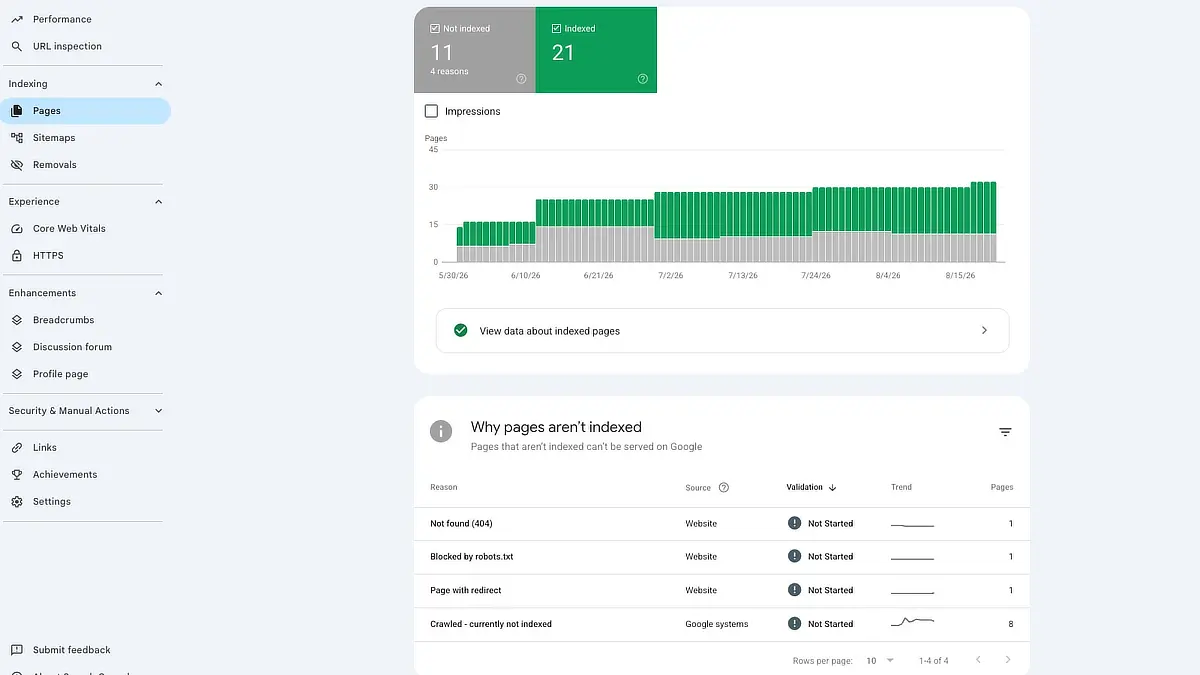
Below the chart sits the “Why pages aren’t indexed” table, and this is where the plain-English translation matters.
Here is what the reasons you are most likely to see actually mean, and what each one asks you to do.
Status Reason
Technical Meaning
Beginner Translation & Action
Discovered \- currently not indexed
Google knows the URL exists but has not crawled it yet, often because it rescheduled the crawl rather than risk overloading your server
Normal on a new site. No fix needed. Add internal links from pages that are already indexed so the URL gets found more than one way
Crawled \- currently not indexed
Google visited the page and chose not to index it, at least for now
The honest signal to check content depth and intent match. Google’s documentation says there is no need to resubmit it
URL marked ‘noindex’
The page carries a noindex directive
Correct for admin, utility, and archive pages. Confirm no actual article has picked it up by accident
Blocked by robots.txt
Your robots.txt file stops Google crawling the URL, which is a different instruction from telling it not to index the page
Usually deliberate on admin and system URLs. If a real article shows up here, unblock it, because a robots.txt rule stops Google from ever seeing a noindex tag on that page
Page with redirect
The URL points somewhere else through a 301 or 302
Normal after you change a permalink. Check that the destination page is indexed
Not found (404)
The URL returns a 404 response
Harmless for test pages you deleted. Fix or redirect it if it is a live article you still link to
Discovered \- currently not indexed
Technical Meaning: Google knows the URL exists but has not crawled it yet, often because it rescheduled the crawl rather than risk overloading your server
Beginner Translation & Action: Normal on a new site. No fix needed. Add internal links from pages that are already indexed so the URL gets found more than one way
Crawled \- currently not indexed
Technical Meaning: Google visited the page and chose not to index it, at least for now
Beginner Translation & Action: The honest signal to check content depth and intent match. Google’s documentation says there is no need to resubmit it
URL marked ‘noindex’
Technical Meaning: The page carries a noindex directive
Beginner Translation & Action: Correct for admin, utility, and archive pages. Confirm no actual article has picked it up by accident
Blocked by robots.txt
Technical Meaning: Your robots.txt file stops Google crawling the URL, which is a different instruction from telling it not to index the page
Beginner Translation & Action: Usually deliberate on admin and system URLs. If a real article shows up here, unblock it, because a robots.txt rule stops Google from ever seeing a noindex tag on that page
Page with redirect
Technical Meaning: The URL points somewhere else through a 301 or 302
Beginner Translation & Action: Normal after you change a permalink. Check that the destination page is indexed
Not found (404)
Technical Meaning: The URL returns a 404 response
Beginner Translation & Action: Harmless for test pages you deleted. Fix or redirect it if it is a live article you still link to
Click any row in that table and you get the specific URLs affected, with an inspect icon beside each one that carries you straight into the URL Inspection tool.
The objection sitting underneath all of this is worth saying out loud: it looks like a penalty. Grey bars, a “not indexed” label, the word “excluded.”
But a penalty in Google’s system is a manual action, and manual actions arrive in their own report with a notification attached. Silence in the Page indexing report is not judgment. It is queue.
One thing Google says about this report that almost nobody repeats: if your site has fewer than five hundred pages, you probably do not need it.
Their own documentation on the Page indexing report suggests a site:yourdomain.com search instead. I still want you to read this report once, so the statuses stop frightening you.
After that, the fastest way to keep new posts moving is not this dashboard at all. It is adding strategic internal links from indexed pages, which gives Googlebot a path to the URL instead of leaving it to be discovered.
Report 3: Verifying Individual Posts with the URL Inspection Tool
The third tool is not in the sidebar list in the same way. It is the search bar running across the top of every Search Console screen, labeled to inspect any URL in your property. Paste a full URL in there, press enter, and you get a diagnostic for that single page.
Use it in three situations: right after you publish something new, after you make a significant update to an existing post, and when a specific URL is showing up as not indexed and you want to know why.
The verdict banner at the top gives you the answer in one line. URL is on Google means the page is eligible to appear in search results, though eligible is not the same as ranking. URL is not on Google means it cannot appear yet, and the reason is in the section underneath. There is a middle verdict too, URL is on Google but has issues, which almost always points at structured data rather than anything that blocks indexing.
Expand the Page indexing section and you get three groups of detail. Discovery tells you how Google found the URL, listing the referring sitemap or page. Crawl gives you the last crawl date, whether crawling was allowed, whether the page fetch succeeded, and what crawler was used, which for nearly every site is the mobile one.
Indexing shows you the canonical, the version Google treats as the master copy when more than one URL could serve the same content. You get both the one you declared and the one Google picked, and when those two disagree, you have found something worth investigating.
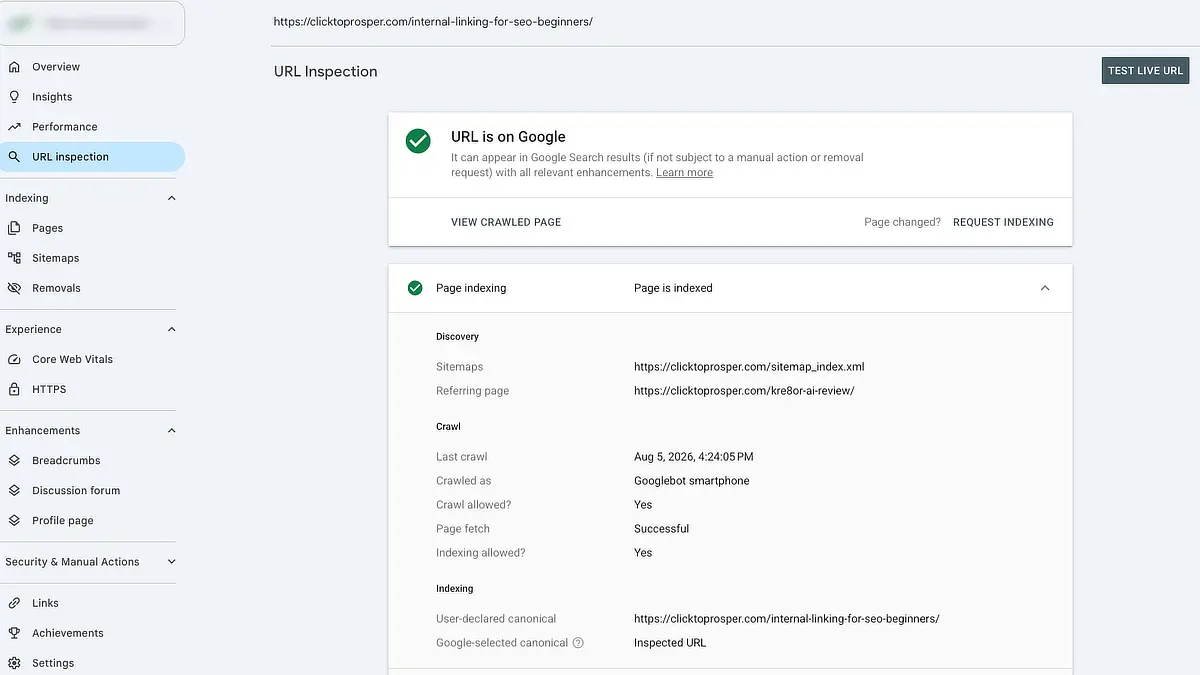
The critical thing to understand is that this first screen is not a live test. Everything you are reading came from the last time Google crawled the page, which could be days old.
If you fixed something this morning, click Test live URL to fetch the page as it exists right now. A live result of “URL is available to Google” means nothing on the page itself is blocking indexing.
Then there is Request Indexing, which is the button people abuse.
Submitting a URL puts it in a queue, and Google is direct in its URL Inspection tool documentation that a request does not guarantee indexing and that there is a daily submission limit per property. Pressing it four times does not create four places in line, it just consumes your daily allowance.
For a page sitting at “Crawled – currently not indexed,” Google explicitly states resubmitting is unnecessary. Submit each new post once, and let your sitemap handle everything else.
What to Do When Impressions Rise but Clicks Stay at Zero
This is the situation you will actually be in around month four, and the right response depends entirely on one number: your average position for that page. Filter the Performance report to the page, turn on Average position, and read it before you touch anything.
If your average position is above 20, you are showing up somewhere past page two. Nothing is wrong with the page. Google has confirmed the topic is relevant and is waiting on signals it does not have yet, mostly age and links.
Rewriting the article at this stage throws away the evaluation Google has already started. Build cluster depth around the topic instead and point internal links at it from posts that are already indexed.
If your average position is between roughly 4 and 10, the diagnosis flips. You are visible and people are choosing something else. That is a snippet problem, not a content problem.
Rewrite the title tag and meta description so they answer the query the Queries tab shows people actually typing, which is usually narrower than the phrase you targeted.
Treat position tiers as a rule of thumb rather than a formula, and remember that average position is averaged across every query the page matched, so a single stray keyword can drag it around.
Three things not to do inside that first six-month window, all of which I see beginners do out of impatience. Do not delete young posts. Do not change permalinks on indexed URLs. Do not run wholesale rewrites of content Google is still evaluating. Each one resets the clock you are already frustrated by.
If a page is genuinely stuck at high impressions and no clicks even after a snippet rewrite, the mismatch usually started before you wrote a word, which is why verifying user search intent before drafting saves more time than any amount of after-the-fact optimization.
The 10-Minute Weekly Search Console Diagnostic Routine
Daily checking is not diligence. It is anxiety wearing a productivity costume, and it costs you the thing that actually moves your site forward, which is the next article. Once a week is enough, and ten minutes is genuinely enough time.
Minutes 1 to 3, Page indexing. Open Indexing, then Pages. Look only for errors with a Website source, meaning something on your end is fixable. Server errors and unexpected 404s on live articles are worth acting on. Everything grey and expected gets ignored.
Minutes 4 to 7, Performance. Open Performance, then Search results, set the range to 28 days, and look at the shape of the impressions line rather than any single day. Then open the Queries tab, sort by impressions, and note any query you did not expect. That is your next post idea, delivered by Google for free.
Minutes 8 to 10, URL Inspection. Paste in whatever you published this week. Confirm the verdict. If it says the URL is unknown to Google, run a live test and request indexing once. Then close the tab.
Then log out. That is the part of the routine that does the work. Search Console will not tell you anything new on Thursday that it did not tell you on Monday, and the reason your competitor outranks you is almost never something hiding in that dashboard. It is that they published forty articles while you were refreshing a graph.
Put the ten-minute check on your calendar for one fixed day each week, inspect your most recent URL before you close it, and spend the rest of your building time writing the next article.
Which Search Console status message has confused you the most so far? Drop it in the comments, along with what your early impressions are doing on your newest posts.

Sonia Zannoni
Hi, I’m Sonia Zannoni, creator of Click to Prosper. I share practical tools, workflows, and honest guidance to help you build an online business with more clarity and less chaos.
About Sonia

Feeling stuck between too many tools and too much advice? Start with the beginner path.
View the Blueprint