Build a Website on Wealthy Affiliate: Step-by-Step Beginner Guide

The Wealthy Affiliate dashboard can have a WordPress site live in under two minutes. That’s not marketing copy. What the quick-start walkthrough doesn’t explain is that “live” and “configured for organic search” are two different outcomes, and the gap between them comes down to a handful of setup choices most beginners never get told to make.
Most people building a website on Wealthy Affiliate skip past the domain decision, leave the default pages untouched, and head straight to writing content. That’s not a personal failure. The platform makes getting live easy without making getting set up correctly obvious.
What those setup choices actually involve is less intimidating than the terminology suggests. Domain versus subdomain, nameserver routing, boilerplate cleanup, mobile layout. This is the click-by-click walkthrough that covers each one in order, so you finish with a fully deployed, search-ready WordPress site instead of just a live one.
TL;DR: Build a website on Wealthy Affiliate
The Foundation: Why a Custom Domain Beats a Free Subdomain
When you first join Wealthy Affiliate, you can build on a free Siterubix subdomain, something like yoursite.siterubix.com. For testing the platform and getting comfortable with WordPress, that’s a reasonable starting point. The problem shows up the moment you want search engines to take you seriously.
A Siterubix address signals to Google that this is a test environment. Search engines prioritize custom top-level domains when deciding which sites to index and rank, and a subdomain puts you at a structural disadvantage before you publish your first post.
Independent registrars like Namecheap and Porkbun give you full ownership of your domain and the flexibility to move it if your hosting situation ever changes. You can review Forbes Advisor’s Best Domain Registrars evaluation for a clear breakdown of the security and portability benefits of keeping your domain separate from your hosting provider.
A custom .com domain (or .net, .org, or your regional equivalent) is a mandatory business investment, not an optional upgrade. Registration typically runs under twenty dollars a year through an independent registrar. For that cost, you get your own intellectual property, a professional address, and a clear signal to both readers and search engines that this is a legitimate site, not a sandbox.
The Siterubix option has one legitimate use: exploring the dashboard or following training modules before you commit a real domain. Once you’re ready to publish content for real readers, move to a custom domain before you write your first post.
Mapping Your External Domain: Nameservers and the Propagation Timeline
If you registered your domain through an external registrar like Namecheap, Porkbun, or GoDaddy, you need to point that domain at the Wealthy Affiliate hosting infrastructure before the platform can recognize it. This is done by updating your nameserver settings inside your registrar’s control panel. It sounds more technical than it is.
Here’s the process, step by step:
- Log in to your domain registrar account where you purchased your domain.
- Locate the DNS or Nameserver settings for your domain, which are usually found under “Domain Management” or “Advanced Settings.”
- Switch from the registrar’s default nameservers to Custom Nameservers so you can route your traffic elsewhere.
- Enter the following two Wealthy Affiliate values to point your domain to the correct servers:
- ns1.mywahosting.com
- ns2.mywahosting.com
- Save the changes to initiate the global routing update.
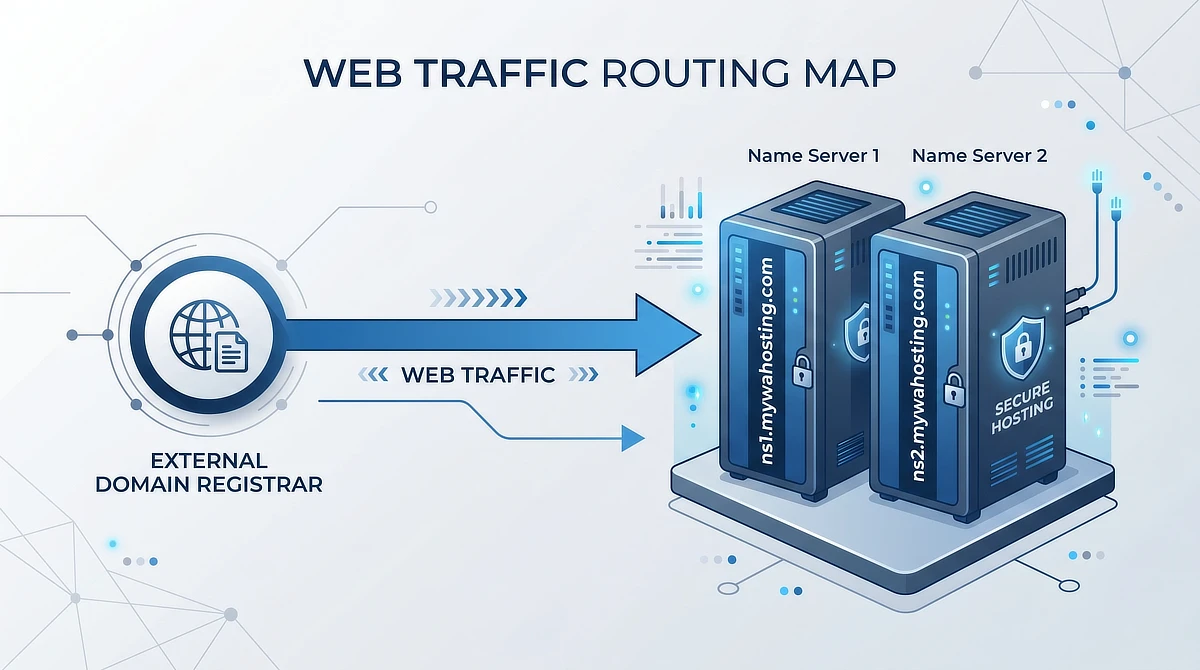
Now for the part that confuses almost everyone: your site will not appear immediately after you save those settings. DNS propagation is the process by which servers around the world update their cached records to recognize your new nameserver assignment.
Because those servers refresh at different intervals, the change can take anywhere from a few minutes to 48 hours to fully resolve across all locations. ServerMania’s DNS Record Types Core Infrastructure guide explains why caching delays occur at the infrastructure level and what actually happens during propagation.
If you type your domain into a browser right after saving and nothing loads, your site is not broken. The change is working. Check back in a few hours. Most propagation completes well within six hours for well-configured registrars, and often faster.
Since you only have a few hours to dedicate to your business each week, do not let this propagation window become dead time. Use this waiting period to open a local text document and draft your “About Me” page or outline your first three blog posts. That way, the moment your domain goes live, you can copy, paste, and publish without starting from a blank screen.
Launching Your WordPress Site via the Build New Site Wizard
Once your nameservers are pointed correctly (or if you’re building on a domain registered directly inside the platform), you’re ready to deploy WordPress. The route is in the left-hand dashboard under the Websites section.
If you want to follow along using a free test account, you can create a free Starter account and set up your initial sandbox site in minutes.
Once you are logged in, scroll down the left-hand sidebar to Websites and click Build New Site. This takes you directly into the Site Manager’s Build My Website wizard.
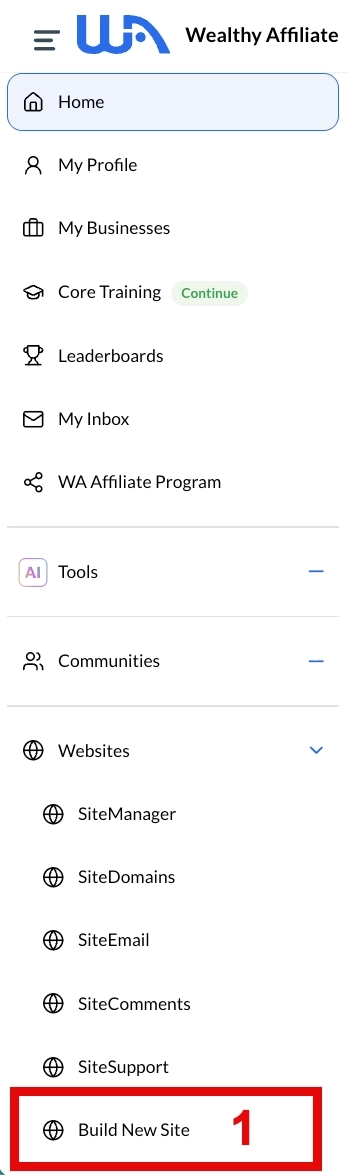
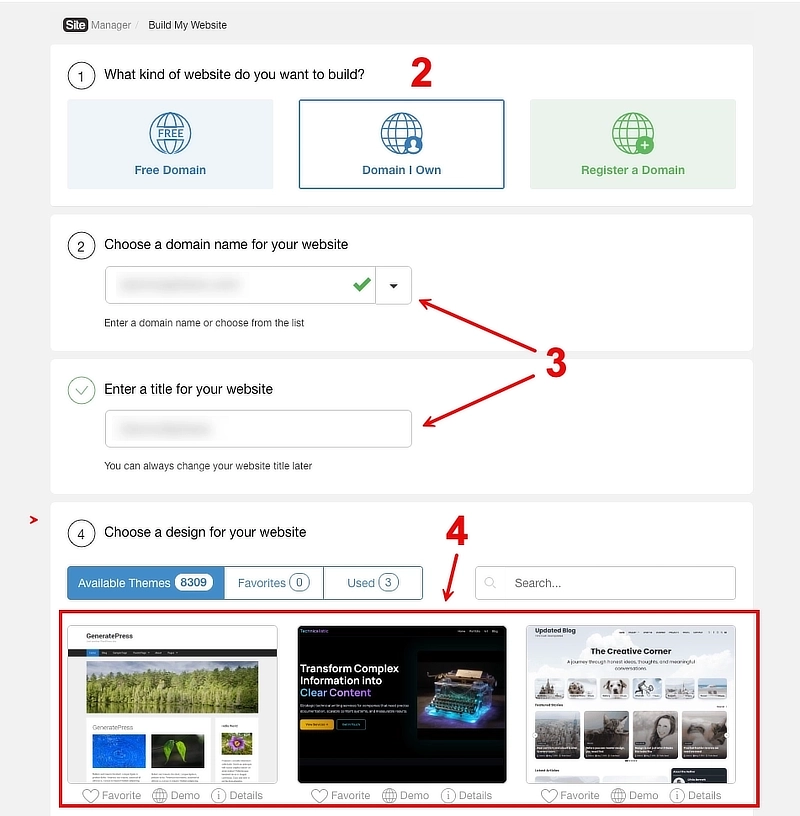
The wizard runs through five labeled steps. Step 1 asks which type of domain you want to build on.
Free Domain deploys your site on a free Siterubix subdomain, which works for testing but won’t earn the search engine authority that a custom domain builds over time.
Domain I Own connects an external domain you’ve already registered.
Register a Domain lets you purchase one directly inside the platform. Starter-tier accounts are limited to the free Siterubix subdomain. Custom domain hosting requires a Premium or Premium Plus subscription.
From there, enter your domain name, add a site title, and select a theme. GeneratePress appears first in the theme library and is the right choice here. It’s lightweight, fast, and the theme the mobile layout steps later in this guide are built around. The free version does everything this build needs, and what the premium version adds, and when it stops being optional, is a decision you can leave until the site has posts on it.
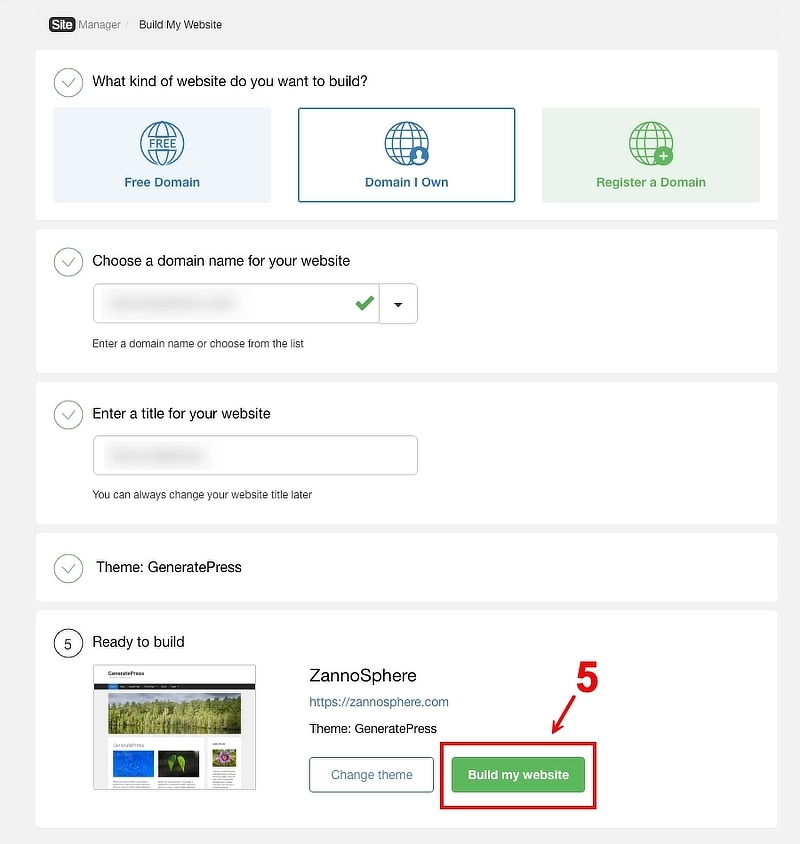
Once all steps show a green checkmark, the “Ready to build” summary appears at the bottom with your site name, URL, and theme confirmed. Click the green Build my website button. WordPress installs automatically, with no database configuration or server settings to touch. The site is live in under two minutes.
If you want a full breakdown of the training, hosting, and keyword tools that come with this setup, reading my complete Wealthy Affiliate platform review will show you how these components fit into your weekly workflow.
Securing Your Brand: Why You Must Edit and Rewrite Auto-Generated Boilerplate Pages
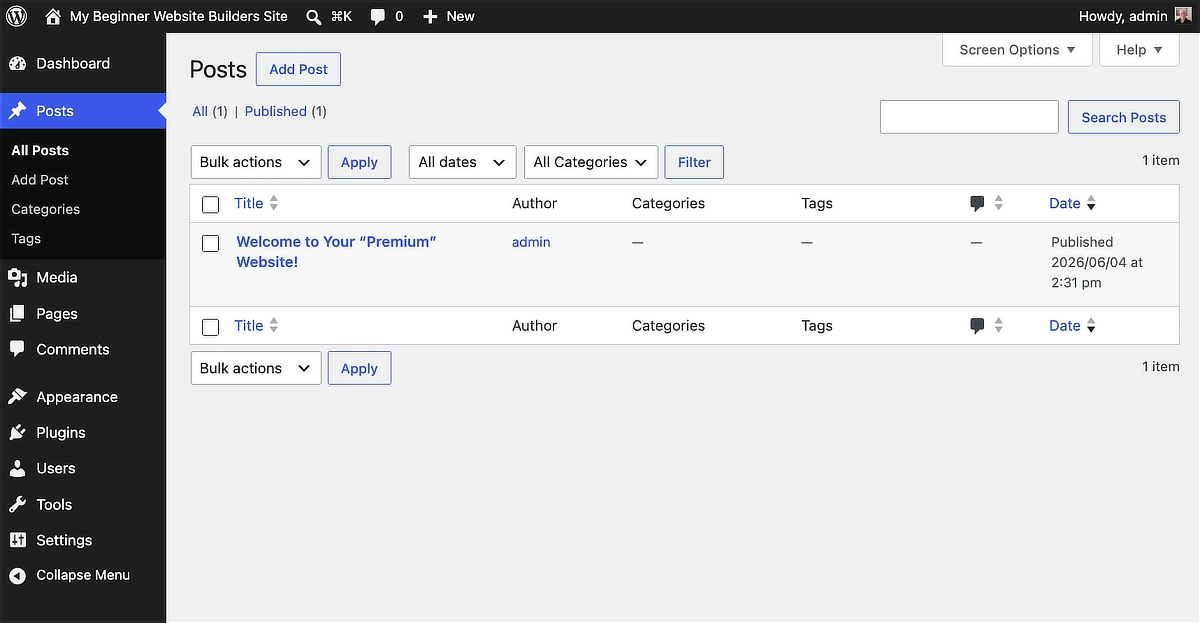
When WordPress launches, it arrives with placeholder content already in place. There will be a default “Welcome to Your Premium Website!” blog post, a sample page, and, depending on your setup configuration, auto-generated versions of pages like About Me, Privacy Policy, and Contact. Leave those pages untouched, and you’re starting with a search engine liability.
Search engines evaluate your site’s overall content quality before committing to rank any individual page. Thin, machine-generated placeholder text signals low effort. An auto-generated Privacy Policy with blank fields, or a generic About Me that describes your site’s purpose in three sentences, will drag down your quality score before you publish a single real post.
Before you write your first piece of content, do two things. First, delete the default “Welcome to Your Premium Website!” post entirely. Then heavily rewrite or replace every auto-generated static page with real, intentional content that reflects your actual site purpose and voice. Your About page doesn’t need to be long, but it needs to sound like a person wrote it for a reason.
If you want a practical approach to refining boilerplate or AI-generated copy without starting from a blank page, my guide on optimizing automated copy with manual edits walks through how to insert your own perspective into these templates quickly. The goal is to go live with a clean, intentional site, not a site Google reads as abandoned scaffolding.
Designing for Mobile: How to Configure GeneratePress Without Sidebars
Most affiliate marketing readers land on your content from a phone. They’re on a lunch break, between tasks, or looking something up quickly in the evening. If your layout is pushing a sidebar column next to your article on a small screen, you’ve made your content harder to read before they even start.
The default GeneratePress installation on a fresh Wealthy Affiliate site often includes sidebar elements. Before you change this layout, make sure you are using the classic GeneratePress theme rather than one of the newer default WordPress block themes.
If your dashboard displays Appearance > Editor instead of Appearance > Customize, your site is running a block theme that hides these settings. Confirming that GeneratePress is active ensures your menu matches this layout exactly.
Here’s how to remove those sidebars for a clean, single-column reading experience:
- In your WordPress dashboard, go to Appearance > Customize to open the visual design controls.
- Click Layout to access your structural settings.
- Under the Sidebars layout settings, choose the primary content layout.
- Set the layout to Content (No Sidebar) to force a single-column, highly readable mobile-first view.
- Click Publish to save the changes globally.
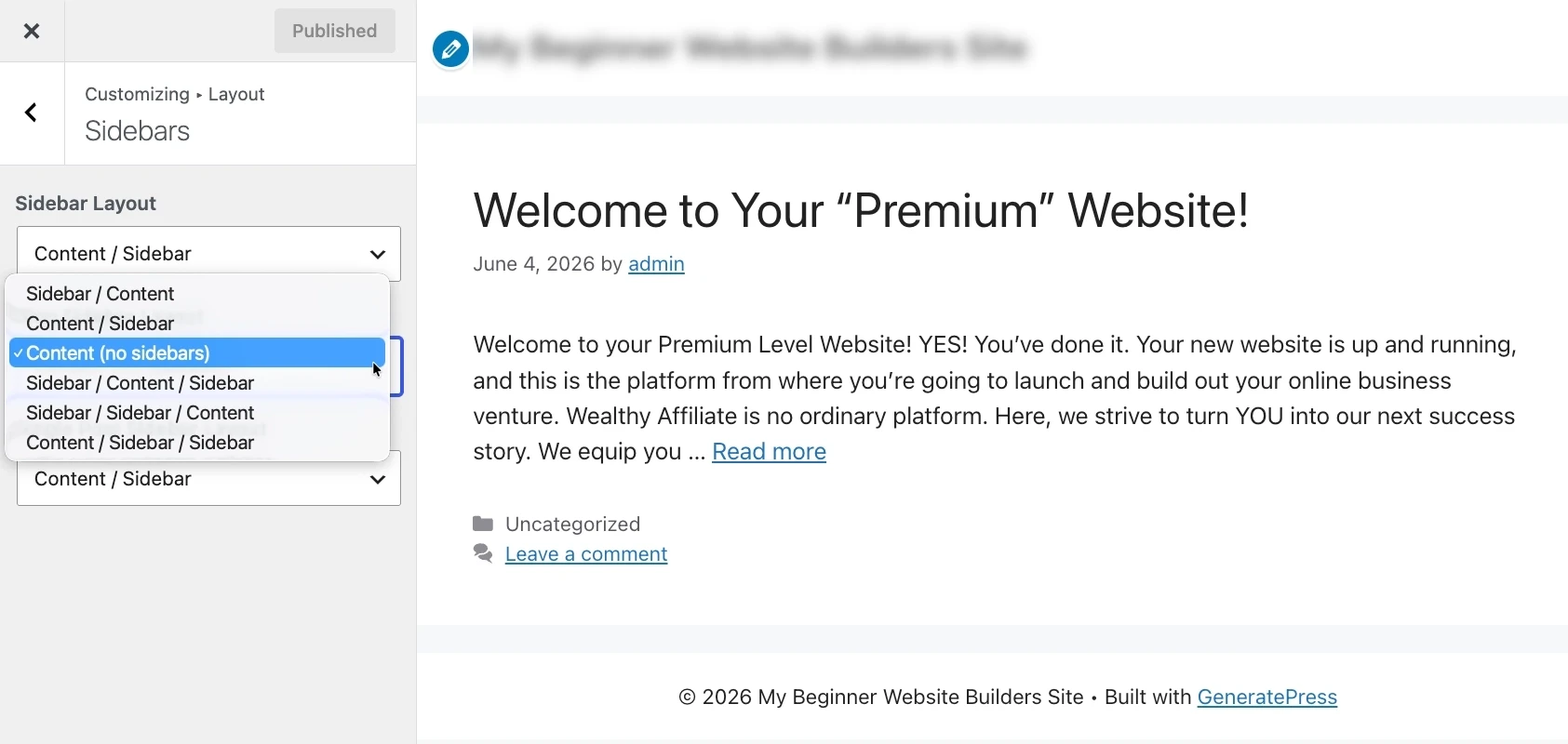
This change applies globally across your site. Removing the sidebar also gives the browser one less element to render on mobile, which reduces load time slightly.
For affiliate sites built around long-form written content, a clean single-column layout outperforms a feature-heavy one every time. A future guide on customizing GeneratePress for affiliate layouts will cover typography, color schemes, and navigation structure once you have your foundation stable.
Layout is only half of that foundation. The other half is deciding how posts get filed, and setting up a lean category structure before you publish is far easier than reorganizing later.
Understanding the Infrastructure: WordPress Performance and Site Hosting Specs
The hosting layer running underneath your WordPress installation is invisible in the dashboard, but it directly affects your search rankings. Search engines use page load speed as a ranking factor. A slow server costs you position before your content ever gets a chance to compete.
The managed WordPress hosting infrastructure handles performance at the server level so you don’t have to. Here’s what that means in practical terms for a beginner site:
Technical Metric
Verified Specification
Value for Beginners
Time to First Byte (TTFB)
Under 200ms
TTFB measures how fast the host’s server responds when someone clicks your link. This is low enough to satisfy Google’s Core Web Vitals without technical configurations.
Global CDN Nodes
40+ distribution points worldwide
A Content Delivery Network (CDN) stores copies of your site globally so pages load instantly from a local server to readers anywhere.
Uptime Guarantee
99.99%
Your site stays online consistently so visitors do not hit an inactive server and bounce before reading your content.
SSL Certificate
Automatic, included
SSL is the secure connection, or HTTPS, that displays a trust padlock in the browser, serving as a baseline trust signal for readers and search engines.
Daily Backups
Automatic, included
If a plugin conflict or a theme update breaks your site, you can restore a previous version and recover your hard work in a single click.
Server-Side Caching
Included
Pages are served from server memory rather than rebuilt from scratch on every visit, reducing load times without requiring buggy caching plugins.
Time to First Byte (TTFB)
Verified Specification: Under 200ms
Value for Beginners: TTFB measures how fast the host’s server responds when someone clicks your link. This is low enough to satisfy Google’s Core Web Vitals without technical configurations.
Global CDN Nodes
Verified Specification: 40+ distribution points worldwide
Value for Beginners: A Content Delivery Network (CDN) stores copies of your site globally so pages load instantly from a local server to readers anywhere.
Uptime Guarantee
Verified Specification: 99.99%
Value for Beginners: Your site stays online consistently so visitors do not hit an inactive server and bounce before reading your content.
SSL Certificate
Verified Specification: Automatic, included
Value for Beginners: SSL is the secure connection, or HTTPS, that displays a trust padlock in the browser, serving as a baseline trust signal for readers and search engines.
Daily Backups
Verified Specification: Automatic, included
Value for Beginners: If a plugin conflict or a theme update breaks your site, you can restore a previous version and recover your hard work in a single click.
Server-Side Caching
Verified Specification: Included
Value for Beginners: Pages are served from server memory rather than rebuilt from scratch on every visit, reducing load times without requiring buggy caching plugins.
For a beginner, the practical takeaway is straightforward: you don’t need to buy performance plugins, subscribe to a separate CDN service, or pay a developer to configure SSL. That infrastructure is already in place. If you are planning for the long haul, understanding how this infrastructure performs over time is essential.
The hosting performance is excellent, but you should know the primary structural tradeoff: because this is managed hosting tied directly to the Wealthy Affiliate platform, your site remains active only as long as your membership is active.
You will not have access to a standard hosting cPanel backend to configure servers manually. Most importantly, if you ever decide to cancel your subscription, you will need to manually migrate your WordPress files to an independent host, such as Hostinger or Namecheap, to keep your site online.
Surviving the Slow Start: Realistic Traffic and Earnings Timelines
Here’s the part most tutorials skip because it’s not the exciting part. You just deployed a real WordPress site on solid managed infrastructure. The layout is clean, the SSL is active, and it looks professional. For the next several weeks, almost nobody will find it.
That’s not a sign that something went wrong. That’s how new sites work.
Search engines don’t index and rank new sites immediately. Google needs to crawl your pages, evaluate your content quality, and assess your topical authority over time before it commits to sending you traffic. That process typically runs six to twelve months before you see consistent organic search visibility.
The timeline varies based on how consistently you publish, how well you target low-competition keywords, and how thoroughly you build out your content around a focused topic.
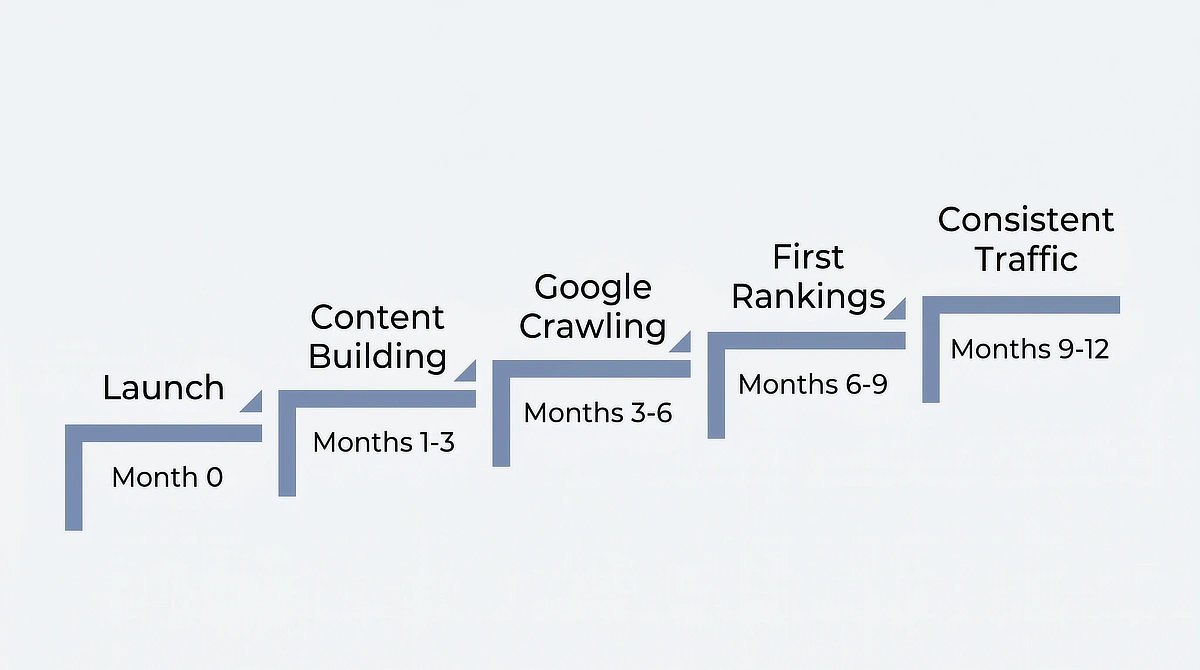
The common beginner mistake is publishing five or six posts, checking Google Search Console every few days for a month, seeing no movement, and concluding the site doesn’t work. The site works. The clock is just longer than most people expect going in.
Knowing what realistic early results look like makes the quiet first few months manageable rather than demoralizing. To help set your expectations, my guide on the realistic affiliate marketing timeline for part-time builders walks through what the growth curve actually looks like, month by month.
Write consistently, target the right keywords for your niche, and build your content out over the coming months. The traffic follows the content. It just doesn’t follow immediately.
You now have everything you need to go from a blank screen to a deployed, professionally configured WordPress site. The technical steps are manageable when you take them in order: custom domain, nameserver delegation, WordPress launch, boilerplate cleanup, mobile layout. None of them requires server knowledge or outside help.
The setup is the easy part. What comes after writing consistently for long enough that search engines take notice is where most beginners either commit or quit. Knowing the timeline going in puts you ahead of almost everyone else who starts this without realistic expectations.
When you’re ready to take the next step:
If you have questions about name server delegation, setting up GeneratePress, or managing your propagation timeline, drop a comment below. I read and answer every question.

Sonia Zannoni
Hi, I’m Sonia Zannoni, creator of Click to Prosper. I share practical tools, workflows, and honest guidance to help you build an online business with more clarity and less chaos.
About Sonia
Feeling stuck between too many tools and too much advice? Start with the beginner path.
View the Blueprint