

The Only Essential WordPress Plugins You Need for an Affiliate Site

Somewhere in the first month of building an affiliate site, most people pick up a belief that quietly costs them traffic: that a “real” website needs a plugin for every feature it could conceivably have. A social share plugin. A table plugin. An author box plugin. A related posts plugin. Thirty installs later, the dashboard has a permanent red update badge, two plugins are fighting over the same CSS, and the site takes six seconds to load on a phone.
That belief is understandable, because five different creators will recommend five different stacks, and none of them agree. So you install all of it, figuring more tools means more capability.
It doesn’t. The best WordPress plugins for affiliate marketing are the five or six that do real structural work, and the fastest sites in this niche are usually the emptiest ones. Fewer plugins means fewer database queries, fewer scripts blocking your page render, and fewer things that can break your tracking links without telling you.
Below is the breakdown: which plugin categories actually earn their place, an honest comparison of the three main link managers, where free tiers stop being enough, and which popular plugins you can delete entirely because your theme already does the job.
TL;DR: Best WordPress Plugins for Affiliate Marketing
The Merchant vs. Publisher Trap: Why Most Plugin Recommendations Fail Beginners
Before evaluating a single plugin, you need to know which side of the affiliate relationship you’re on, because the two sides need completely different software.
A merchant runs an affiliate program. They sell a product, recruit affiliates, track referrals from those affiliates, and pay out commissions. A publisher writes content, recommends other companies’ products, and earns a commission when a reader buys. If you’re building a review site or a niche blog, you’re a publisher.
This distinction matters because it explains why so many “best affiliate plugins” roundups send beginners in the wrong direction. AffiliateWP, SliceWP, and Easy Affiliate are excellent tools, and they’re all merchant software. They exist to manage payouts, affiliate registrations, and commission tracking for a program you own.
Installing one on a review blog gives you a payout dashboard with nobody in it, plus a set of database tables running queries on every page load for no reason.
The confusion is mostly a search-term problem. “Affiliate plugin” describes both categories, so roundup writers who’ve never built a publisher site grab whatever ranks and list it. If a plugin’s sales page talks about paying commissions, recruiting affiliates, or setting payout rates, close the tab. That’s not your tool.
So what does a publisher actually need? Five technical jobs, and only five:
- Link redirection and cloaking, so your affiliate URLs are short, branded, and editable in one place when a merchant changes their link structure
- On-page SEO and structured data, so search engines understand what each post is and your listings earn a wider footprint in results
- Caching and performance, because affiliate content lives on competitive keywords where a slow mobile load costs you both rankings and readers
- Structured content display, so comparison tables and product callouts look intentional instead of pasted in
- Backups and basic security, because a single failed update on a monetized site can take down every post you’ve written
Everything else is optional, and most of it is replaceable. That’s the filter for the rest of this post: does the plugin do one of those five jobs better than something you already have?
The 6-Plugin Maximum Rule: Building a Lean Foundation for Speed and Conversions
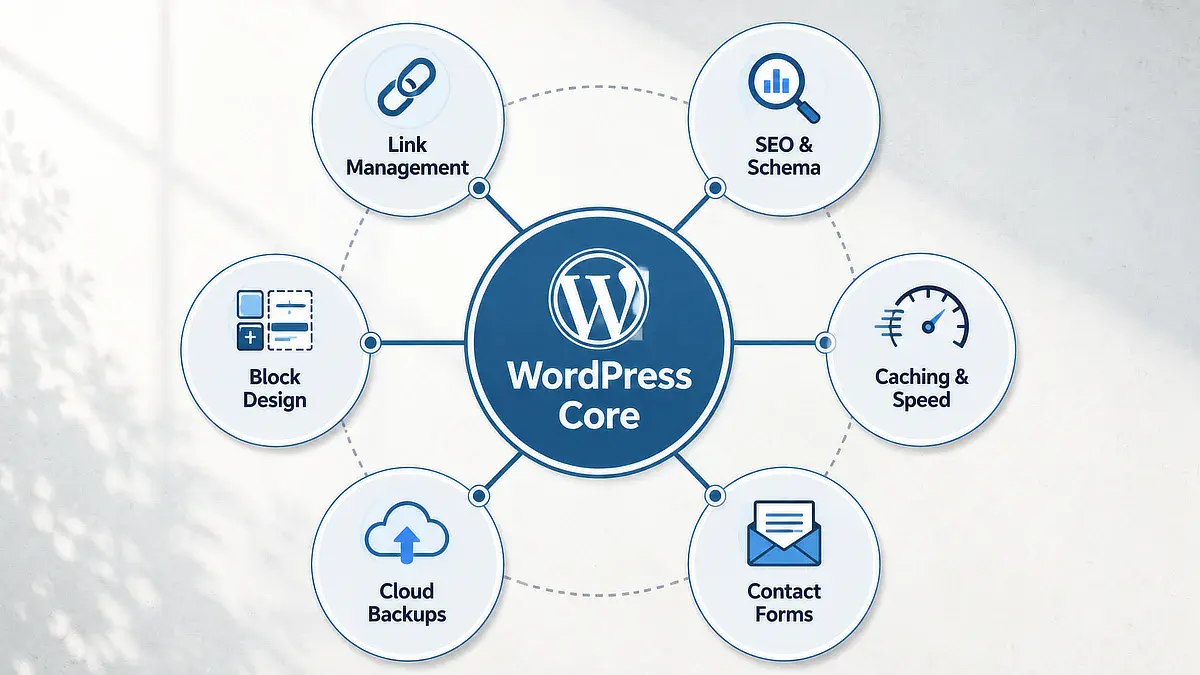
The working rule I use when evaluating a WordPress stack is that six plugins should cover every function a monetized affiliate site needs. Link management, SEO, caching, block layout, backups, and forms. If a candidate plugin doesn’t fall into one of those categories, it needs to justify itself against the load it adds.
“Load” isn’t a vague concern, and this is where most beginner advice stops short. Every plugin you activate does some combination of three things.
It enqueues its own CSS and JavaScript, which the browser has to fetch and parse before it can finish rendering your page. It writes settings into the options table, and poorly built plugins mark those rows as autoloaded, so they get pulled into memory on every request whether the feature is used or not.
Many also register background tasks that fire whenever a visitor lands, competing for the same server resources as the page they’re trying to read.
Stack fifteen of those together, and you get the classic symptom: a site that feels fine on your desktop connection and scores in the 40s on mobile. The WordPress Plugin Developer Handbook documents how plugins hook into page loads and where those resource costs come from, which is worth skimming even if you never write a line of PHP.
The reason this matters commercially, not just technically, is that page experience is a ranking input. Google’s Search Central documentation on page experience sets out how loading, interactivity, and layout stability feed into how a page is assessed.
In a niche where you’re already competing against sites with far bigger backlink profiles, handing away your one structural advantage (a small, fast site) to a share-button plugin is a bad trade.
Before installing anything new, run it through four checks:
- Does it do one of the six core jobs? If not, the answer is almost always no.
- Can my theme or block builder already do this? Most layout, button, and callout plugins are redundant on a modern block theme.
- When was it last updated, and how many active installs does it have? Abandoned plugins on a monetized site are a security liability, not just a speed one.
- What does it load on the front end? A plugin that only runs in the admin area (like a backup tool) costs your readers nothing. A plugin that injects scripts on every page costs them something on every visit.
If you’re still setting up the site itself, the plugin decisions get much easier once the foundation is right, since a well-chosen theme removes half the reasons people reach for extra plugins. My walkthrough on setting up a clean WordPress foundation covers that build order.
Run those four questions against every plugin currently active on your site, not just the next one you’re tempted to install. Anything that can’t answer yes to at least one core job is a candidate for removal today.
Affiliate Link Management: Comparing Pretty Links, ThirstyAffiliates, and Lasso
Link management is the one category where publishers genuinely need dedicated software, so it’s worth spending real attention here.
The core function is redirection. Instead of dropping a raw affiliate URL into your post, you create a clean internal link like yoursite.com/go/toolname that forwards to the merchant.
Two practical reasons this matters: when a merchant changes their tracking parameters or you switch programs, you update one redirect instead of editing forty posts, and you get click data on your own links, so you can see which placements actually get used before you rewrite a post.
Here’s how the three main options separate. The evaluation criteria that matter: what the free tier actually does, whether it handles Amazon’s specific requirements, and whether you’re paying for redirection or for display.
Comparison Point
Pretty Links
ThirstyAffiliates
Lasso
Best For
Simple branded short URLs and click tracking
Publishers using Amazon Associates alongside other programs
Established sites that need product display, not just redirects
Core Free Feature
Unlimited cloaked links, redirect types, click stats
Link cloaking, categories, click tracking, smart uncloaking by link or category
None. Premium only
Key Premium Feature
Automatic keyword replacement, link rotation, deeper reporting
Product displays, automatic keyword linking, geolocation redirects, advanced reports
Product display boxes, comparison tables, price syncing, broken link alerts
Annual Cost
Free tier available; paid tiers billed annually
Free tier available; Pro add-on billed annually
Premium only, billed annually or monthly
Amazon Uncloaking
Not built in
Yes, included in the free version
Yes
Best For
Pretty Links: Simple branded short URLs and click tracking
ThirstyAffiliates: Publishers using Amazon Associates alongside other programs
Lasso: Established sites that need product display, not just redirects
Core Free Feature
Pretty Links: Unlimited cloaked links, redirect types, click stats
ThirstyAffiliates: Link cloaking, categories, click tracking, smart uncloaking by link or category
Lasso: None. Premium only
Key Premium Feature
Pretty Links: Automatic keyword replacement, link rotation, deeper reporting
ThirstyAffiliates: Product displays, automatic keyword linking, geolocation redirects, advanced reports
Lasso: Product display boxes, comparison tables, price syncing, broken link alerts
Annual Cost
Pretty Links: Free tier available; paid tiers billed annually
ThirstyAffiliates: Free tier available; Pro add-on billed annually
Lasso: Premium only, billed annually or monthly
Amazon Uncloaking
Pretty Links: Not built in
ThirstyAffiliates: Yes, included in the free version
Lasso: Yes
The Amazon row deserves an explanation, because it’s the one place a redirect can create a compliance problem rather than solve one. Amazon’s Program Participation Requirements say you can’t cloak or obscure the URL of your site containing Special Links, including through redirecting links, in a way that stops Amazon from seeing which site the click came from. A related clause covers shorteners that hide the fact you’re linking to Amazon.
The practical read: display your Associates links uncloaked, and keep everything else redirected. ThirstyAffiliates does that split automatically, per link or per category, and it’s in the free version. Pretty Links doesn’t, so you manage the exception by hand.
So who should use what? If you’re not in Amazon Associates and you want clean links with click counts, Pretty Links free does the job and you can stop reading this section. If Amazon is part of your mix, ThirstyAffiliates free saves you from a manual process you will eventually forget to follow.
If you’re running an established site where product boxes and price accuracy genuinely drive revenue, Lasso is the only one of the three that’s a display engine rather than a redirect tool.
The honest tradeoff on Lasso: it’s a recurring cost with no free path, and it earns that cost through conversion lift and time saved on maintenance, not through link management itself. On a site with no traffic, there’s no lift to capture. That’s a month-twelve decision, not a month-one decision.
One habit that pairs with this: whichever tool you pick, your redirect slugs are only useful if you can find them again later. Naming them consistently makes attribution reporting readable, and it fits neatly into running a manual internal linking routine as part of your regular content maintenance.
SEO and Structured Data: Why One Full-Feature SEO Plugin Beats Five Utility Tools
The mistake in this category isn’t picking the wrong SEO plugin. It’s picking a good SEO plugin and then installing four more tools that duplicate what it already includes.
A modern SEO plugin covers XML sitemaps, meta title and description control, canonical tags, redirect management, 404 monitoring, and schema markup.
Every one of those functions has a standalone plugin available in the repository, and every one of those standalone plugins is redundant if your SEO framework already handles it. That’s usually where a stack quietly grows from six plugins to eleven.
Rank Math, Yoast, and All in One SEO all handle the fundamentals competently. The practical difference for a budget-conscious publisher is where each one draws its free-versus-paid line. Rank Math includes redirect management, 404 monitoring, and a wide set of schema types in its free version.
Yoast puts redirect management behind Premium. That single difference is what usually decides it, because a redirect manager is not optional on a site where you’ll eventually change URLs or retire posts.
Schema is worth understanding rather than just enabling. Schema markup is structured code that tells search engines what a page contains: that this is a review, that it has a rating, that it’s a how-to with these steps. It doesn’t improve your ranking directly.
What it does is make your listing eligible for a richer result display, which can widen your footprint on the results page and pull clicks away from listings above you. On a review-heavy affiliate site, that’s a meaningful edge for zero ongoing cost.
Where the free tier genuinely stops being enough is narrower than the sales pages suggest. You’d want Pro for managing multiple keywords per post at scale, advanced schema customization, or deeper analytics integration.
None of that changes anything on a site with thirty posts and modest traffic. If you’re pre-revenue, the free tier is not a compromise. It’s the correct choice.
Performance and Caching: WP Rocket vs. LiteSpeed Cache (And the Affiliate Tracking Conflict)
Caching is the one plugin decision that isn’t really yours to make. Your hosting environment makes it.
If your host runs LiteSpeed Web Server, LiteSpeed Cache is the answer and it’s free. It works at the server level rather than purely in PHP, which is why it outperforms application-level caching plugins on that infrastructure, and why paying for an alternative on LiteSpeed hosting buys you a worse result.
If your host runs Apache or Nginx, LiteSpeed Cache loses that advantage. WP Rocket is the strongest paid option there, but check your host first: many Apache and Nginx hosts run server-level caching (Nginx FastCGI cache, or a Cloudflare integration) that does most of the work before a plugin gets involved.
If yours doesn’t, WP Super Cache or WP Fastest Cache will cover a beginner site at zero cost. W3Techs’ server and CMS statistics give you the wider context on server types if you want it.
Now the part that costs affiliate publishers real money, and almost nothing warns you about it.
Aggressive performance settings work by deferring or delaying JavaScript so the page renders before scripts execute. That’s good for your speed score. It’s a problem when one of those delayed scripts is the tracking code that attributes a click or sets a conversion cookie.
If a reader clicks your link before the affiliate script has loaded, the click may not register at all. Your traffic looks healthy, your clicks look low, and there’s no error message anywhere to explain the gap.
Test for it directly after any caching change:
- Open your live post in a private browser window. Right-click the page, choose Inspect, select the Network tab, and tick “Preserve log” so the redirect doesn’t wipe the record.
- Click your affiliate link and watch the request fire. Confirm the redirect resolves to the merchant with your tracking parameters intact in the destination URL.
- Check your affiliate dashboard the following day and confirm the click was recorded there, not just that the redirect worked in your browser.
If clicks disappear after you enable a JavaScript delay setting, exclude your link management script from that rule rather than turning the whole feature off. You keep most of the speed gain and all of the tracking.
This is also where hosting choice compounds. If you’re weighing managed hosting against assembling your own stack, it’s worth analyzing the three-year cost of modular WordPress hosting before committing, and worth exploring the Wealthy Affiliate platform and managed hosting setup if you’d rather have hosting, caching, and site management handled in one environment instead of configuring each piece yourself.
Zero-Plugin Alternatives: Essential Features You Can Build with Core Blocks
Here’s the objection I’d expect at this point: fine, six plugins, but what about share buttons, comparison tables, author boxes, and image compression? Those are four more installs right there.
They’re not, and this is where most stacks get trimmed the fastest.
Social share buttons are the easiest cut. Share plugins load scripts and often external requests on every page, and affiliate content in this niche gets almost no organic sharing. If you want them, a static set of styled links costs nothing. Author boxes are built into most modern themes. Related posts are usually a theme setting rather than a plugin.
Comparison tables and product callouts are where a block builder does the real work. GenerateBlocks lets you build a product card or a comparison layout directly from container, headline, and button blocks, styled once and reused.
The output is your own markup with minimal CSS, so it renders as fast as the rest of your page and looks like part of your site rather than a widget bolted onto it.
The tradeoff is honest: you spend an hour building the first one. After that, you duplicate it, and you never pay a subscription for the layout.
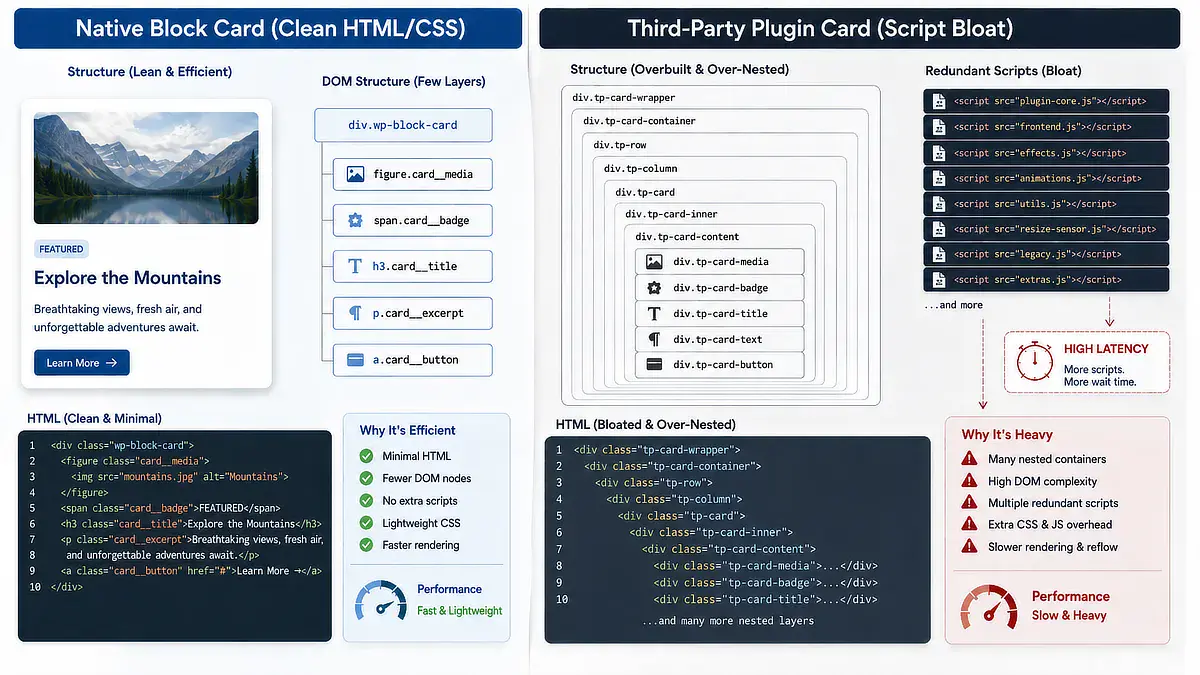
Image compression is the last common install, and it’s the one I’d argue hardest against. Compression plugins process images on your server after upload, which means background jobs and stored originals eating disk space.
Doing it before upload removes the plugin entirely: resize to the width your theme actually displays, convert to WebP, and check the file lands under roughly 200 KB before it ever touches your media library.
If you want a repeatable process for that, my workflow on resizing and compressing blog visuals before uploading covers the steps.
None of this makes your site look cheaper. It makes it faster, and it means one fewer thing that can break during a WordPress core update.
The Plugin Upgrade Roadmap: When to Move from Free Tiers to Premium Software
The question underneath all of this is when to start paying, and the answer is later than most beginners assume.
Stage 1: Run Entirely Free Until the Site Earns
Pre-revenue through roughly $100 a month, everything you need is free. Rank Math free, LiteSpeed Cache or a free caching alternative, Pretty Links or ThirstyAffiliates free, UpdraftPlus free, GenerateBlocks free, and whichever lightweight form plugin your theme doesn’t already cover.
This stack will take a site to profitability. No premium license fixes the problem that actually holds most sites back at this stage: not enough published content for the keywords you can rank for.
Stage 2: Buy Only What You Can Justify Individually
Between roughly $100 and $500 a month, upgrades become defensible one at a time. A premium caching license if your host requires it. A display tool like Lasso if you can point at specific posts where product boxes would plausibly lift conversion, and you have the traffic for that lift to outweigh the annual cost.
Do the arithmetic before you buy. If a tool costs a few hundred a year, it has to return more than that in commission, or in hours you’d otherwise spend on manual maintenance.
Stage 3: Spend to Buy Back Time, Not Features
At $500 a month and up, the constraint is usually your hours, not your software. Workflow and automation tools that remove repetitive tasks start making sense in a way they didn’t at Stage 1.
The pattern across all three stages: software follows revenue, not the other way around. A premium plugin purchased in month two is a cost with no measurable return. The same purchase in month fourteen might be the highest-leverage $200 you spend that year.
So before you install anything else this week, do the reverse audit. Open your plugins page, and for each active plugin, name which of the six core jobs it does. Anything that can’t answer that question is a candidate for deletion.
Then run your site through a speed test, deactivate the ones you couldn’t justify, and run it again. The difference in that second score is what your plugin habits have been costing you.
Do that before you draft your next post, not after. A faster site makes every post you publish from here work slightly harder.
If you’re unsure whether a specific plugin on your site is causing speed issues or duplicate queries, share your list of plugins in the comments below. I read and reply to every question.

Sonia Zannoni
Hi, I’m Sonia Zannoni, creator of Click to Prosper. I share practical tools, workflows, and honest guidance to help you build an online business with more clarity and less chaos.
About Sonia

Feeling stuck between too many tools and too much advice? Start with the beginner path.
View the Blueprint